
Searching for Products
Search for a specific product in the search field. In the list future down on this page can you see what type of data you can search in.
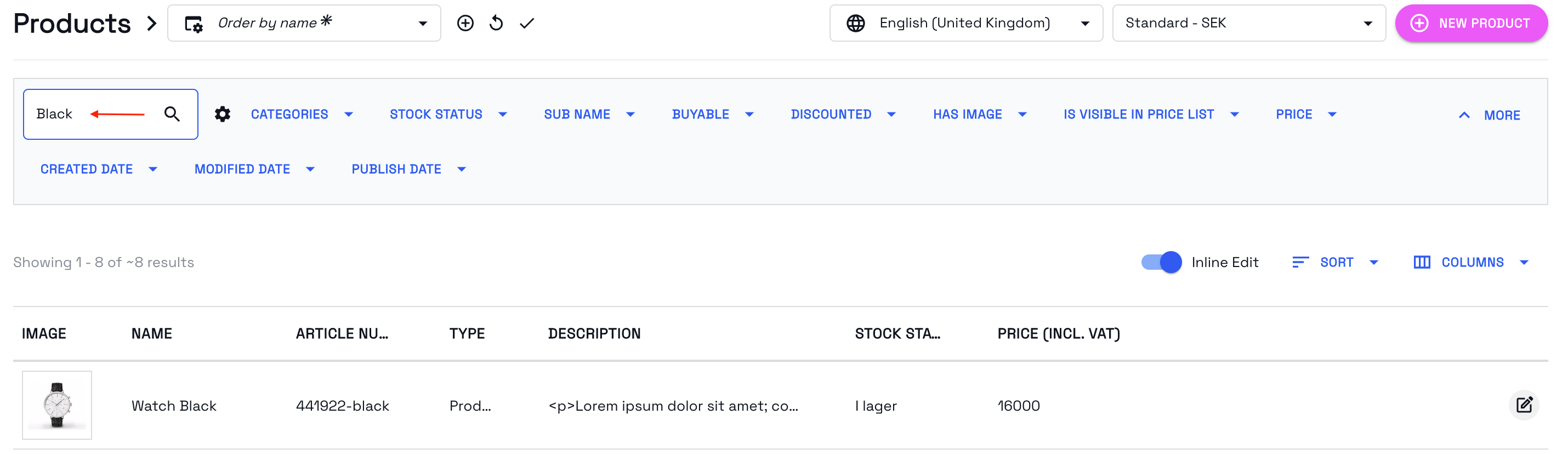
When searching for products, the following fields are indexed:
-
ArticleNumber
-
Name
-
SubName
-
GtinEan
-
VariantValues - attributes
-
Description
-
ShortDescription
Updating products in List View
In this new List product-view you are able to update some information on the product in list-view mode. You can either update horizontally or vertically.
While editing, you can use ↹ Tab or Shift + ↹ Tab on your keyboard to quickly swap between the fields.
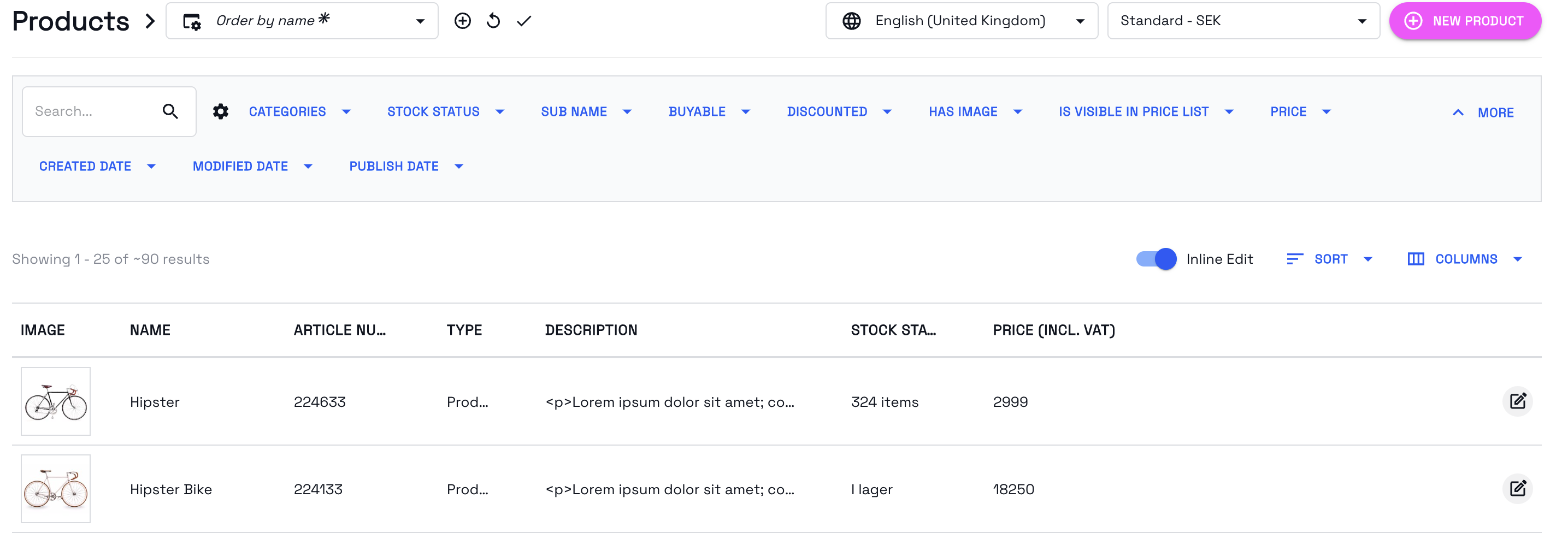
To enter row edit-mode for a specific row, you will need to hover your mouse in the intersections between the meta data for the products → press the 🖊 icon.
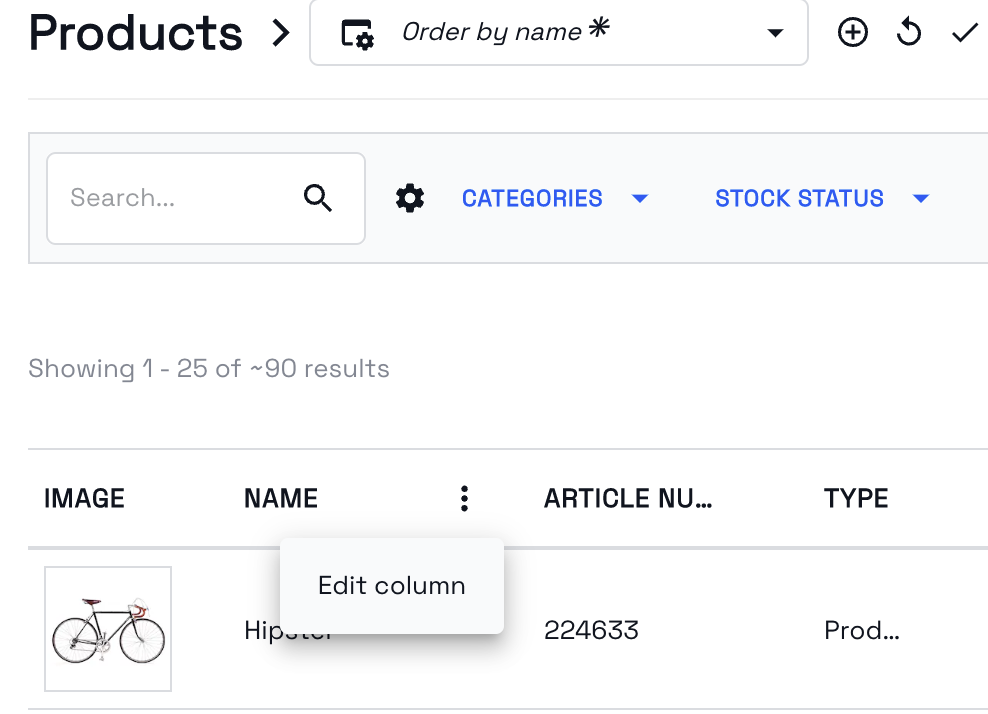
To enter column edit-mode while you are in row edit-mode, you can hover the pen-icon again, which will show a switch to column edit mode-tooltip, click on it to enter column edit mode. You can also enter column edit-mode by clicking the three dots in the menu panel in between the headers.
By pressing Enter on your keyboard you will submit a save-action if you have focus on a field or you can press Esc to perform a cancel-action.
You can also press the small icons at the end of a row or a column.

To enable or disable editing, you can toggle Inline Edit at the top of your product list.
Filtering for Products
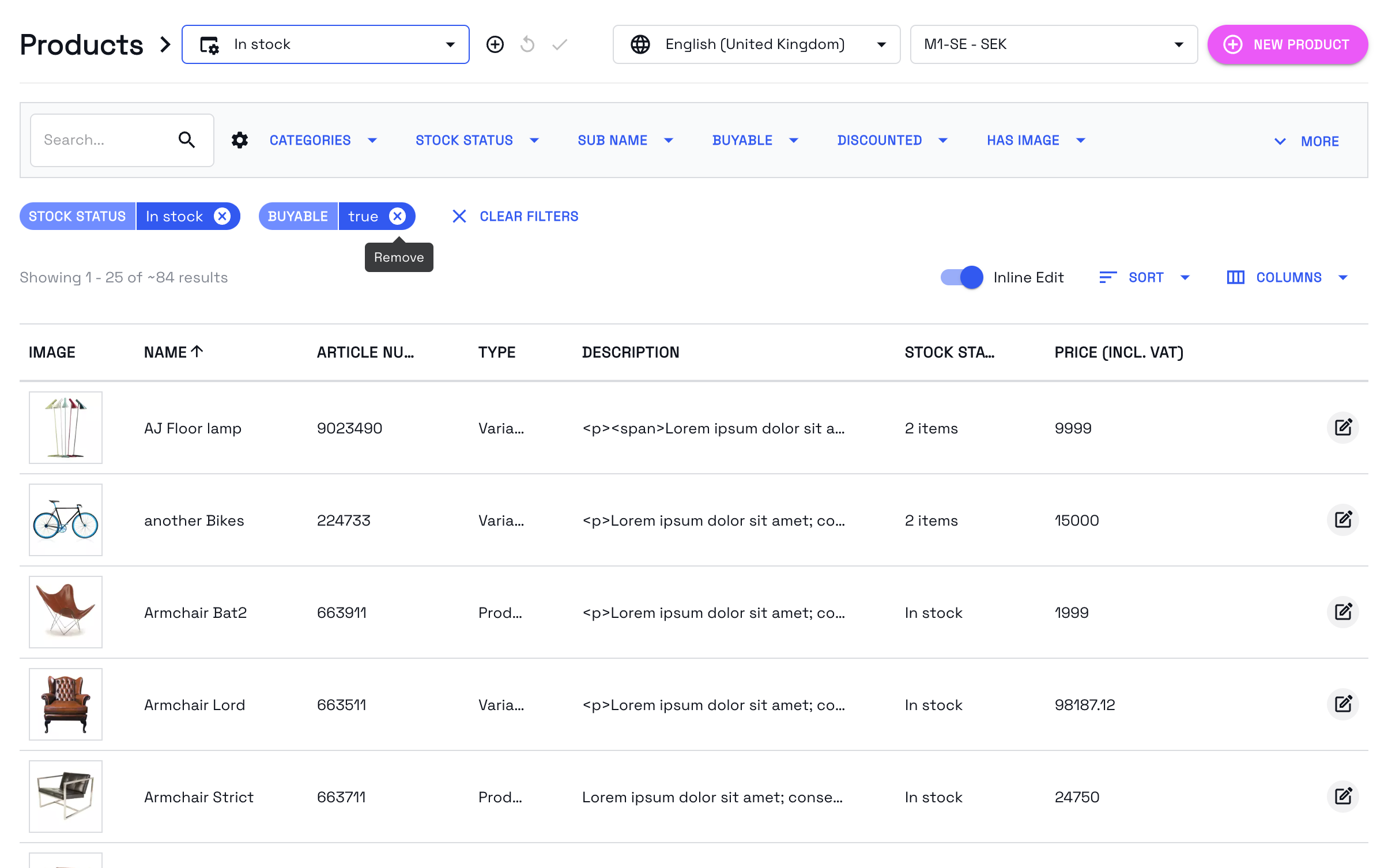
You can with help the of filtering find products that you want to view or edit. When picking a specific filter value it will appear as a selected filtration. As you add more filter values, the selection bar will expand. You can easily remove a filter value by clicking the x-icon.
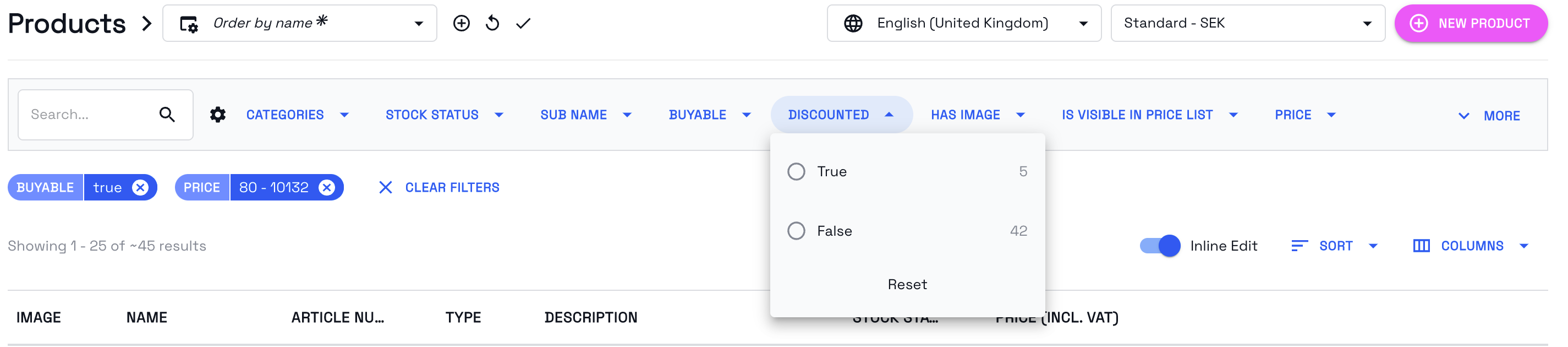
In some cases, for example the Date Range or Price filters, the reset button will reset the filter values to their original values, it will not remove an active filter.
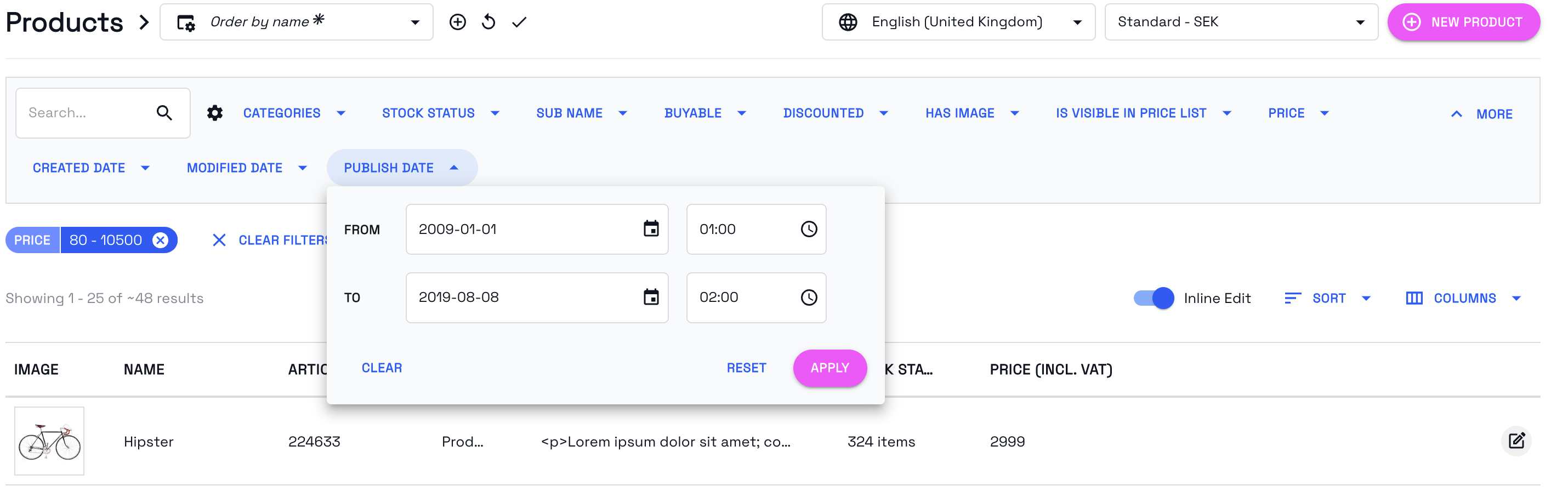
When a product have multiple variants, where some variants are discounted and some are not, the product will be filterable both as discounted:true and discounted:false.
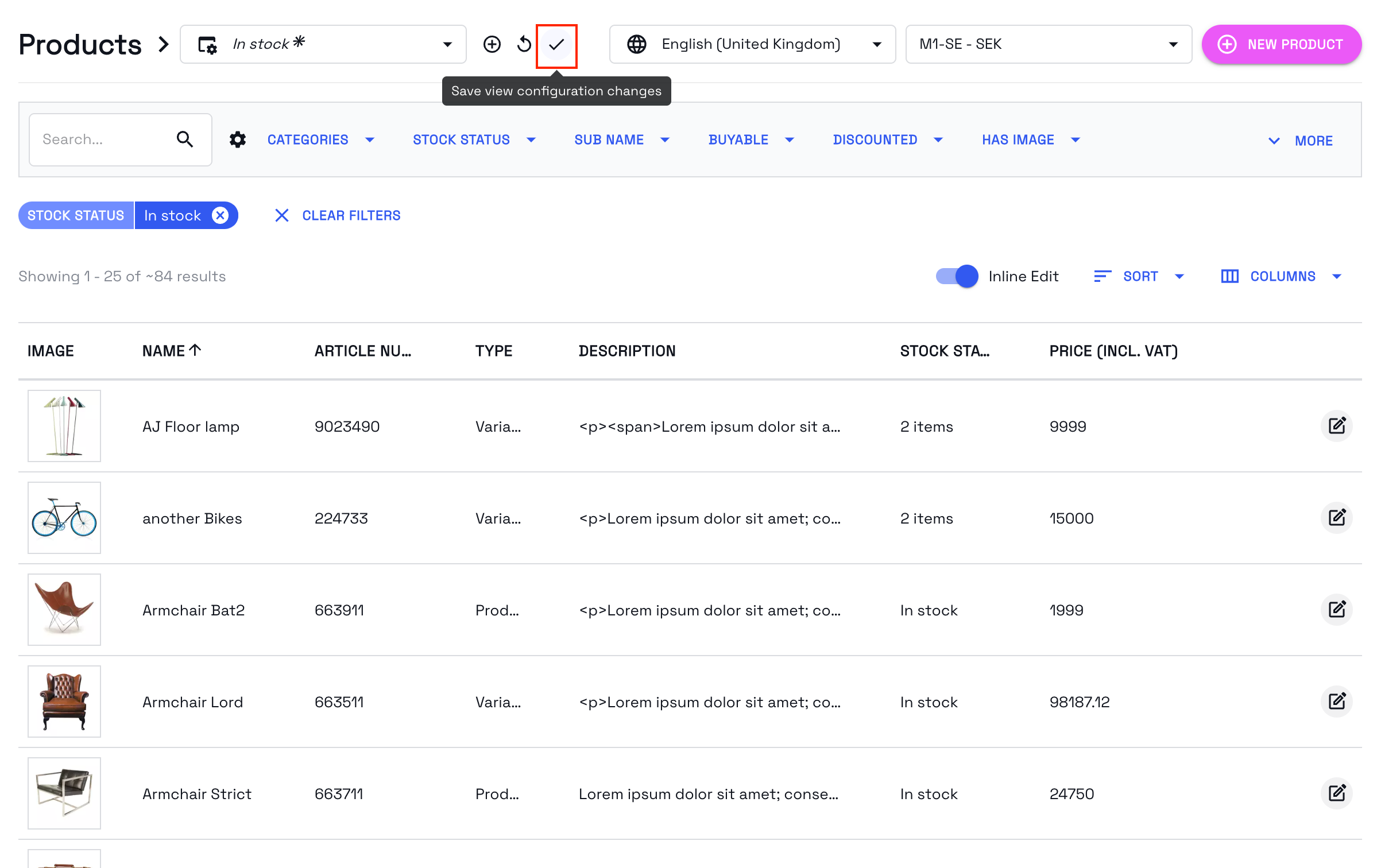
You can also update a already saved view by adding or remove values
and then save it all again
Filter Types
This section will explain the different filter types that currently exist:
|
Boolean |
You can only choose one or the other, for e.g. under filter Buyable can you either chose True or False. |
|
Category |
Multiple choices can be selected when it comes to Categories. You can also expand the category tree and filter on the additional categories under the parent. |
|
Date range |
Filter between two specific dates and/or time stamps. You can either write manually or you can use the calendar icon or clock icon to pick values. |
|
List |
Multiple choices can be selected when it comes to List filter. |
|
Numeric range |
Filter a Numeric range by either using the slider-function or manually write your values. |
Filter Settings
You can access the filter settings by pressing the ⚙️ icon next to the list of filters.
By ticking a box under Active Filters you will send that filter over to the Inactive Filters-section and vice versa. Press Submit to apply your changes.
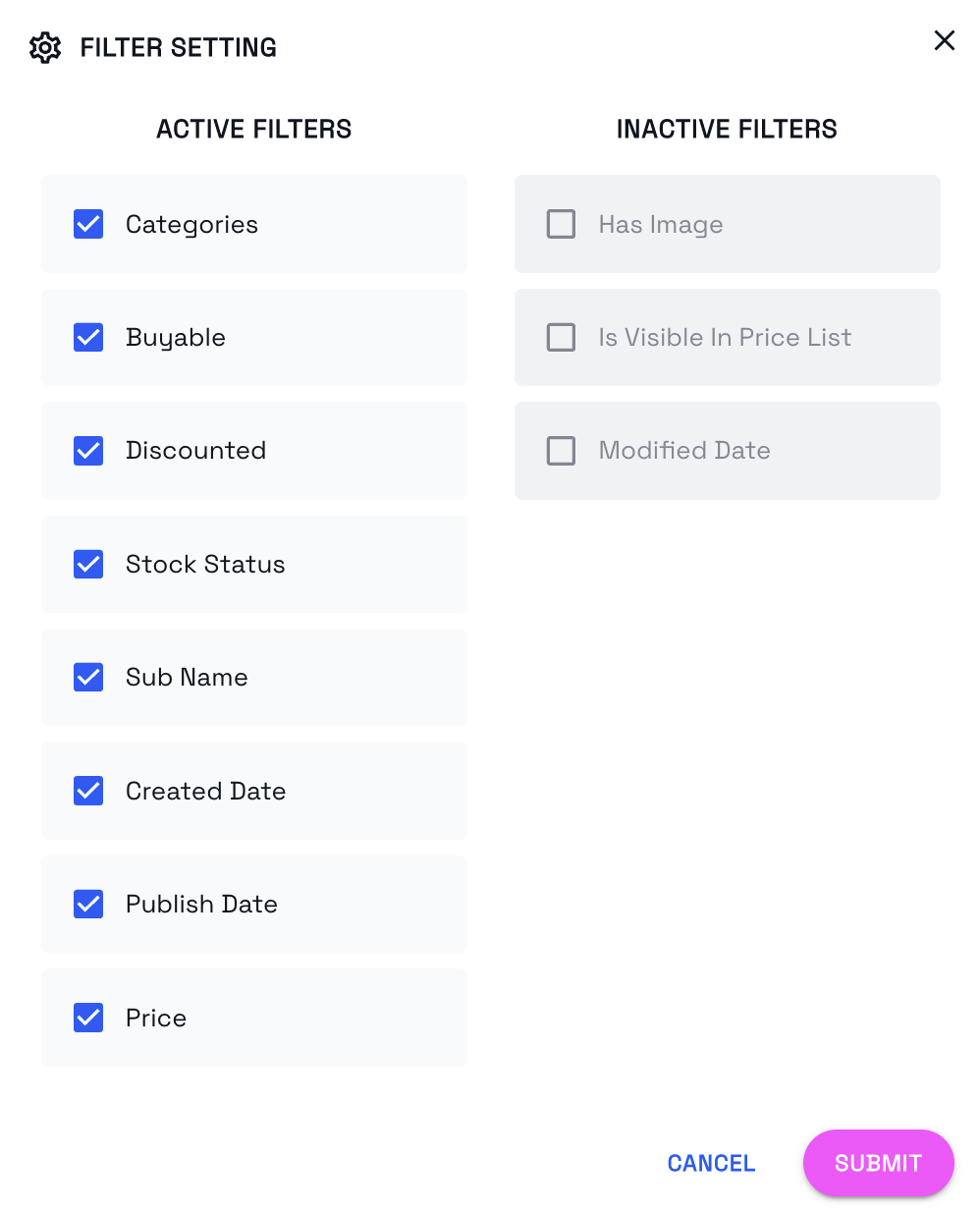
In this dialog you can change which filters you want to be active for the current view, inactive filters will be hidden from the list of filters, note that this is only a visual change.
Comments
0 comments
Please sign in to leave a comment.